
Turn a Product Photo into a Styled Ad Visual — No Photoshoot Needed
Imagefactory Engineering · Published 2026-06-18
A product photo is usually just the product on a white background — a clean "cutout." Fine for a product page, but drop it into a feed ad and it disappears in the scroll. Booking a studio shoot with lavender fields and silk fabric, on the other hand, costs real time and money. The short version: with one cutout product photo you can produce a styled "staged" visual — scene, props, mood and all — with no shoot at all. The catch: you can't just tell any model to "make it pretty." The moment the product's shape, color or label is altered, it reads as fake. Let's look at a real example first.
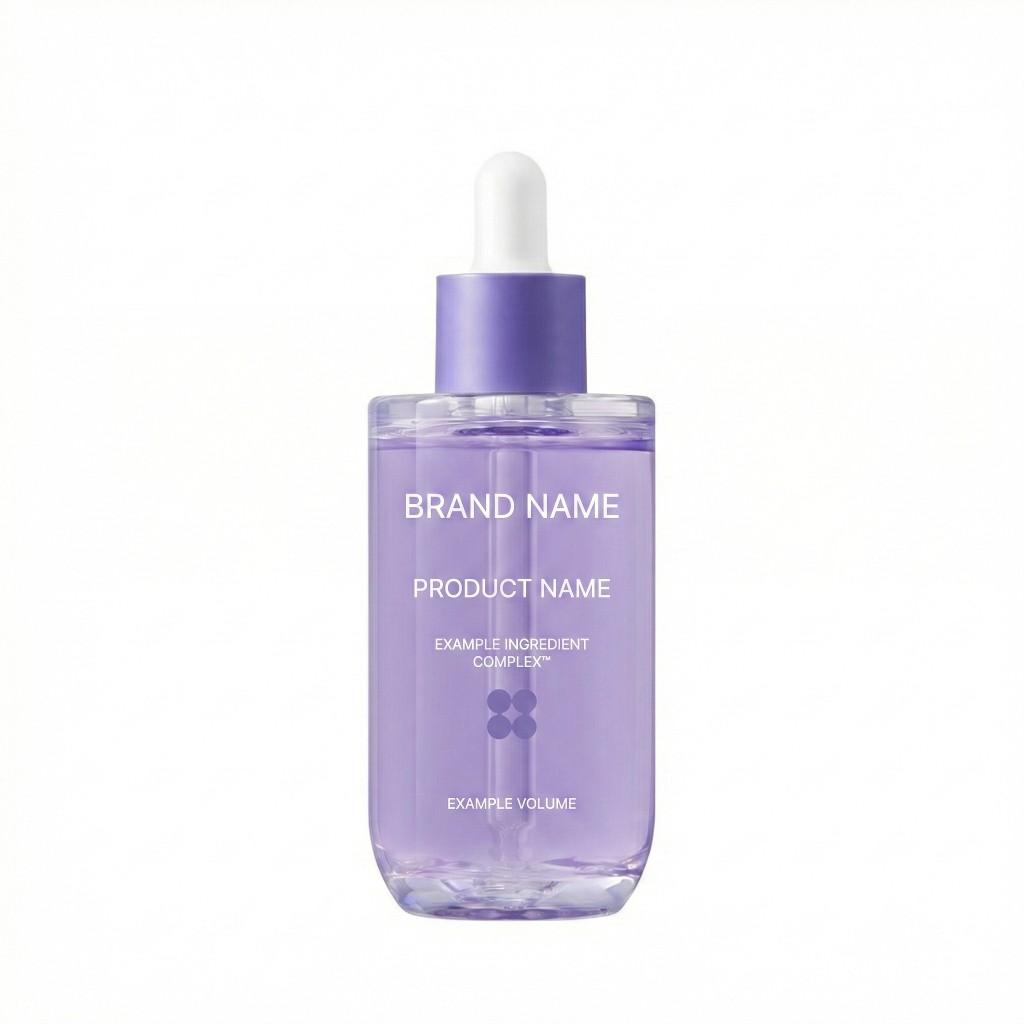
Product cutout
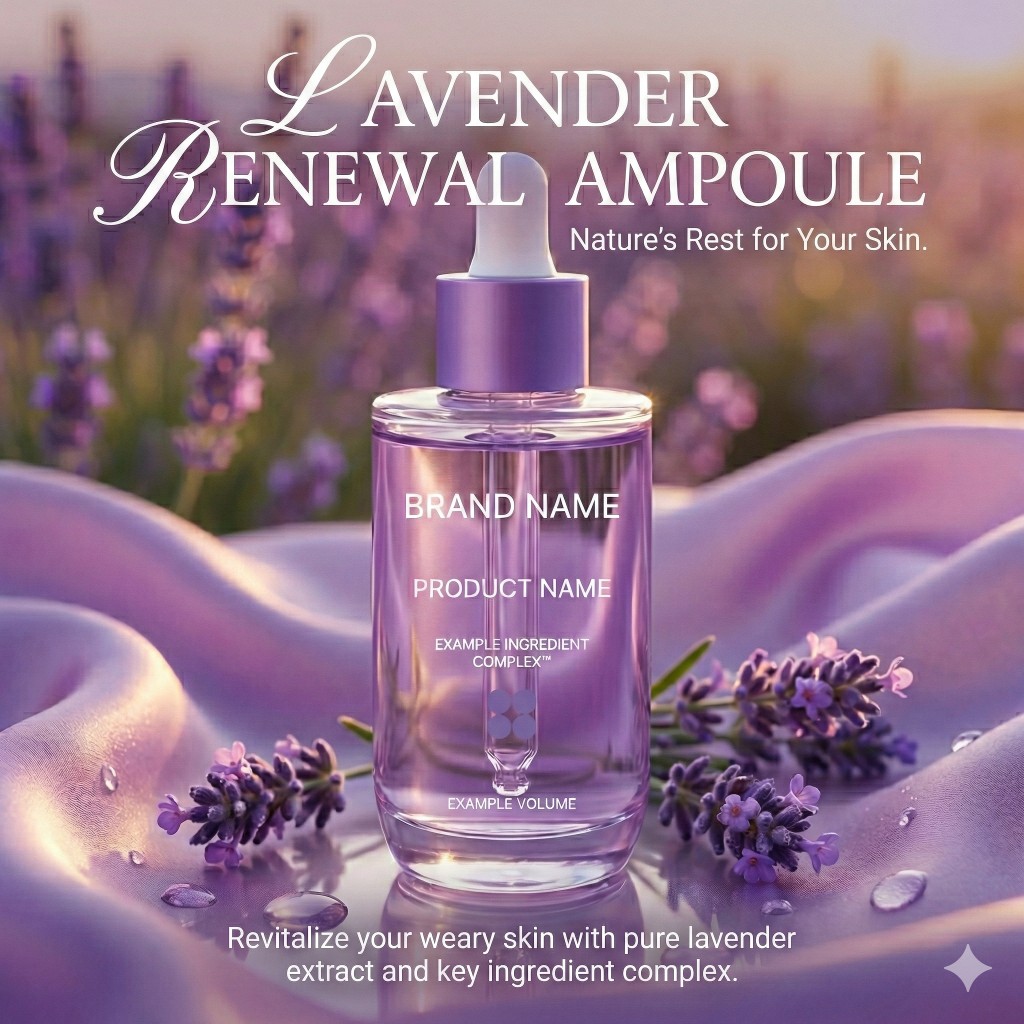
AI-staged visual
The image on the right was made from the single cutout on the left. A lavender field, silk, water droplets and a headline are all new — yet the product and its label (BRAND NAME, PRODUCT NAME) are exactly the original. That "product untouched, scene rebuilt" is the whole idea of a staged visual.
Can you make a staged product shot without a studio?
Yes, and the flow is simpler than you'd think. ① Prepare a cutout with the product separated from its background → ② give the AI the mood you want (e.g. "soft lavender field, natural light, calm tone") → ③ the AI paints that scene and seats the product inside it. The trick is that the light direction, floor reflection and shadows all conform to the scene. A line or two of prompt replaces laying out fabric and rigging lights.
What kind of product photo gives the best result?
The input is 80% of the result. A clean cutout with the background clearly separated is best. The sharper the product outline and the fewer baked-in shadows or reflections, the more cleanly the AI composites it into a new scene. A messy background or a heavy existing shadow tends to get dragged along and looks off. If you only have one shot, use a straight-on, high-resolution one.
How is it different from "just swapping the background"?
They look similar, but the realism differs. A background swap cuts the product out and pastes it onto another photo — if the light direction is off, the product floats. Staging builds the scene so lighting, shadows, reflections and props all belong to the same shot as the product. Whether an ad reads as "obviously composited" is decided right here.
Four common mistakes when staging
This is where most "obviously-AI ads" are born.
- The product subtly changes — the AI "redraws" the product and the bottle shape or color shifts slightly. Customers spot a mismatch with the real thing in half a second.
- The label or text garbles — when the AI redraws text on the product, letters smear or invented characters appear (here's why AI breaks Korean text).
- Shadows and reflections don't match the scene — sun from the left, shadow to the right. That single tell screams composite.
- Making just one and stopping — an ad doesn't end at one image. Feed, Stories, Display — the sizes pile up, and one image stalls you there (generating an image isn't finishing a banner).
A checklist for good staged visuals
- Start with a clean cutout — a straight-on, high-resolution shot with the background clearly separated.
- Treat the label, logo and product shape as "preserve" targets. Paint the scene anew, but don't touch the product's pixels — that's the safe route.
- Match the scene to the product's tone. Lavender serum wants soft purple daylight; a bold energy drink wants high-contrast studio light — keep mood and category aligned.
- Finalize one master, then adapt to sizes. Don't regenerate per size; expand the approved master to each placement spec with everything preserved.
How Imagefactory does it
- Upload the product cutout — the plain white-background version is fine.
- Give it a mood and it generates the staged scene. The product and label are kept as original pixels, so shape, color and lettering don't change.
- The approved visual is then adapted across 1,400+ placement sizes. Text is never redrawn per size, so nothing breaks, and safe zones and file specs are applied per guide automatically.
- Up to 2K/4K resolution, text preserved across 15 languages — and the same flow works inside the Figma and Photoshop plugins.
One studio shoot's budget can run a year of ad creative. The fastest way to judge it is to stage your own product cutout in a 14-day free trial.