
How to Create a Cafe24 Sub-Operator Account for Your Agency — Menus to Open for Conversion Tracking and SEO
Imagefactory Engineering · Published 2026-09-08
When an agency installs conversion tags and works on search visibility (SEO) for a Cafe24 store, it needs admin access. Don't hand over the master operator login — register a sub-operator and open only the menus the agency needs. Orders, customers and billing stay closed, and when the work is done you switch the account off. Registration takes about five minutes.
Seven menus are enough
Here is what the agency actually touches, and the menu each screen belongs to. Anything not in this table can stay closed.
| What the agency does | Cafe24 screen | Menu to open |
|---|---|---|
| Connect Meta Pixel and Google tag | Sales channels → Facebook channel, Google & YouTube | Sales channels, Google & YouTube |
| Register GTM and Naver conversion scripts | Store settings → Basic settings → SEO → Advanced settings | Store settings |
| Fix search titles, descriptions, sitemap | Same SEO screen → Basic settings | Store settings |
| Add heading tags and structured data to templates | Design → HTML editor | Design |
| Naver Shopping, Google Merchant, Meta catalog feeds | Marketing | Marketing |
| Clean up product names and descriptions | Products | Products |
| Verify conversions and traffic | Statistics | Statistics |
Orders, Customers, Messages and Bulk Excel hold personal data and money. The agency doesn't need them. If your store also shows a payments menu such as Cafe24 Payments, keep that closed too.
1) Open Operator accounts and click Register
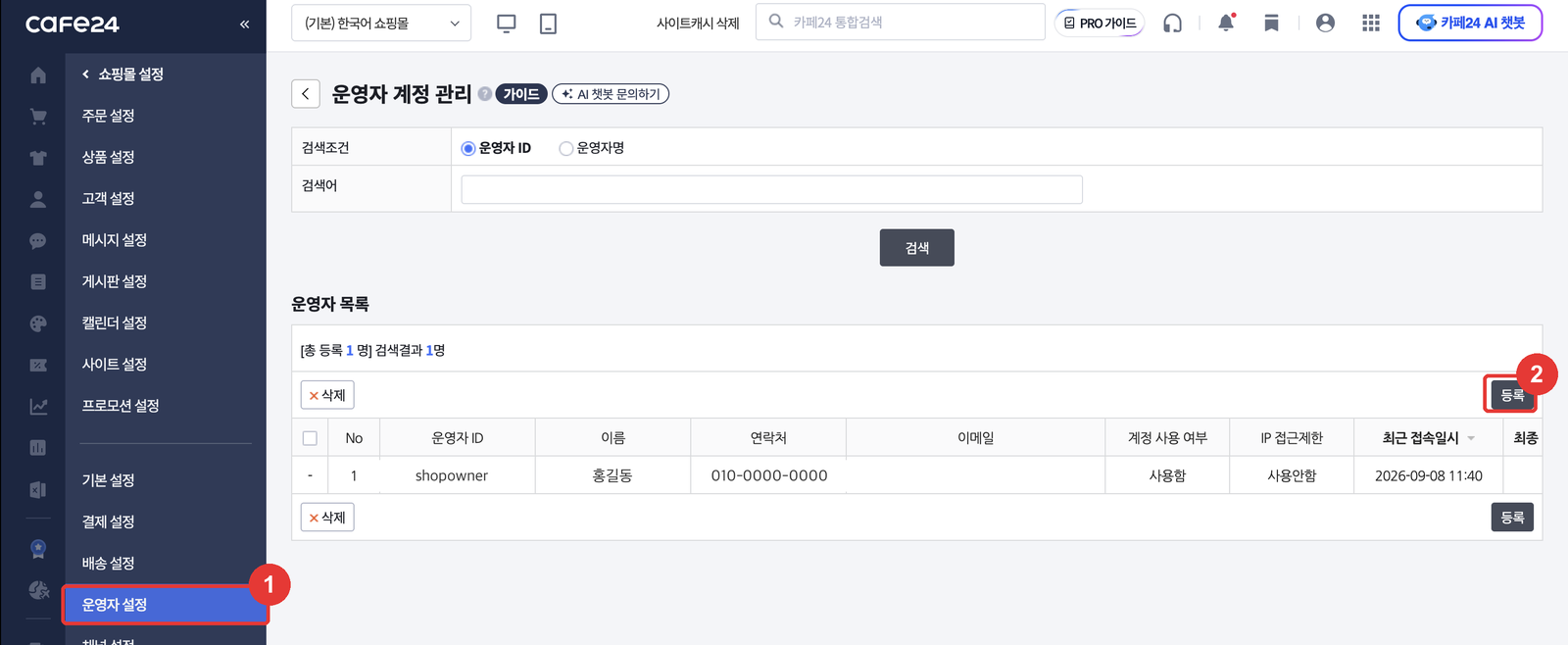
In the admin's left menu go to Store settings → Operator settings. Under Operator management click Operator accounts, then the Register button at the top right of the list. Only the master operator can see this screen.
2) Fill in the basics
- Operator ID: use the agency's name so it's easy to spot in the list. Click
Check duplicate. - Operator name / nickname: the contact's name or the agency's name.
- Password: set it yourself and send it through a different channel from the ID, such as SMS.
- Board display: untick all three. There's no reason for the agency's name to appear on store boards.
- Status:
In use.
3) Tick every sensitive-data restriction
Below the basics there is a [Common] Sensitive data restrictions block. Tick all five boxes under personal data, order data and member data. Even with those menus closed, this stops personal data from leaking through other screens.
4) Tick only seven menus under PC admin access
In PC admin permissions, under Select stores tick only the store the agency works on. Under Menu access tick these seven.
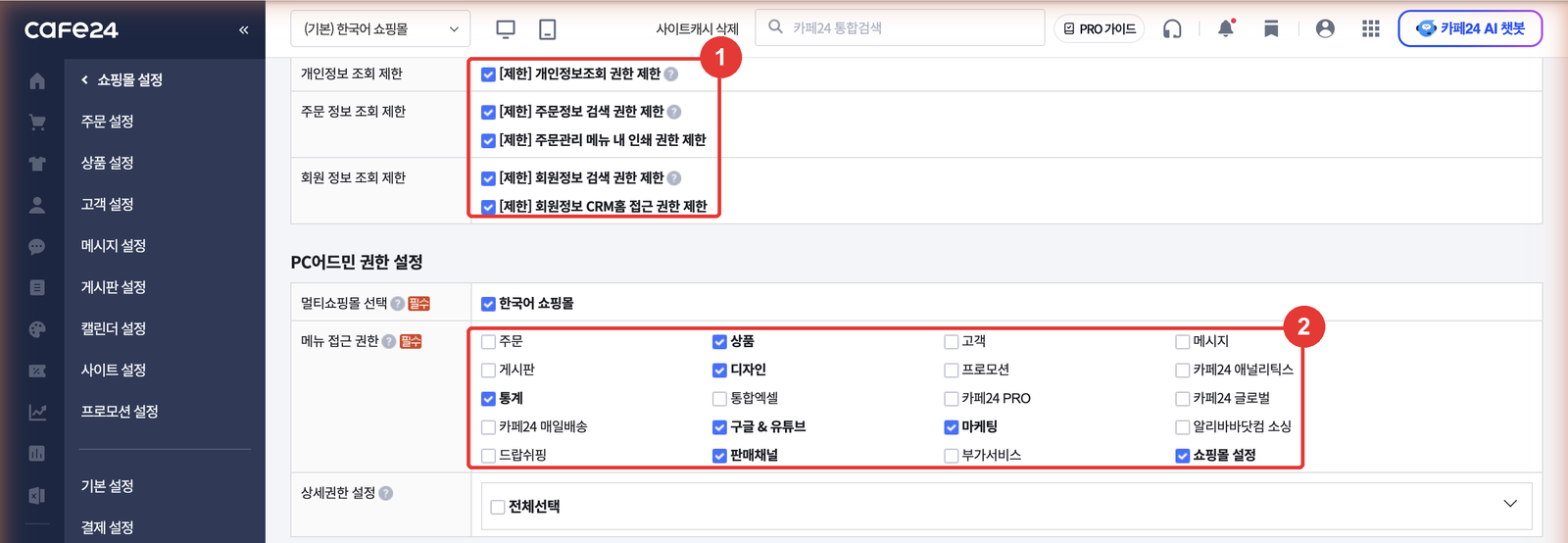
Every menu is ticked when the screen first opens. Untick Orders, Customers, Messages, Boards, Promotions, Bulk Excel, Add-on services and anything else outside the seven. The menu list differs a little from store to store, so you may see items like Cafe24 Analytics or Dropshipping — untick those too.
5) Expand Detailed permissions just to check
Detailed permissions lists function-level rights for products, orders, members, boards and Excel exports. The agency only needs Edit product and Set display status; the rest can stay unticked. As of September 2026 this list on the registration screen has no separate SEO entry, so the SEO screen is opened by the Store settings menu you ticked in step 4. Stores on the older admin, and some app guides, tell you to tick Store settings → Basic settings → Store info → Search engine optimization (SEO) separately — if you see that item, tick it.
6) The remaining blocks
- Mobile admin: keep
Products,DesignandStatisticsonly. Untick the sales dashboard. - My apps: keep
Cafe24 App Storeticked. Needed to install tracking and SEO apps. - Cashfee, Market Plus: untick.
- Access restrictions: set
IP restrictiontoNot used. Agencies sign in from several places.
Click Save and the new operator appears in the list. Send the agency only the operator ID; send the password another way.
How to revoke access
In Operator accounts, click the ID and set Status to Not in use. Sign-in stops immediately. To remove the account, tick it in the list and click Delete. If you might work with the agency again, disabling is easier than deleting.
Four common snags
I can't see the Operator accounts menu. You're signed in as a sub-operator. Sign in again with the master operator ID.
The menu is open but the SEO screen is locked. Either Store settings wasn't ticked, or your store's detailed permissions include a separate SEO item that wasn't ticked. After saving, the agency has to sign in again for it to apply.
The pixel and catalog belong to Cafe24 Ads. If you ever ran ads through Cafe24 Ads, the pixel and catalog are Cafe24's assets. Go to Marketing → Ad management permissions, click Get permissions, sign in to the platform and accept the invitation, and ownership comes back to you. Do this first so the agency can keep using the existing pixel.
It says the pixel is installed twice. A tag pasted earlier into the design HTML or SEO advanced settings is still there. Tell the agency where it is and they'll consolidate it.