
How to Set Up GA4 on a Cafe24 Store, Step by Step
Imagefactory · Published 2026-09-16 · Updated 2026-09-18
GA4 (Google Analytics 4) is Google's free analytics tool that shows which ad or search term brought a visitor in, which pages they viewed and where they bought. To add it to a Cafe24 store you create a GA4 property, paste the GTM (Google Tag Manager) code into Cafe24's Direct code input, then publish the GA4 tag and a purchase event from GTM. It takes about an hour the first time, and the steps below go in order.
What does GA4 show you?
The statistics in the Cafe24 admin summarize how many people visited today and how much they spent. GA4 shows where each visitor came from and what they were doing when they left, broken down by path. Once you spend on ads, that difference is money.
| Question | Cafe24 admin statistics | GA4 |
|---|---|---|
| Which ad or search term did the buyers come from? | Visit counts per source only | Purchases and revenue per channel and campaign in the Acquisition reports |
| Which page did visitors leave from? | Page view counts only | Exits and time on page per page in the Engagement reports |
| How many reached the cart but never paid? | - | Drop-off per step in the purchase journey report |
| Does it connect to Google Ads performance? | - | Link the Ads account and import GA4 purchases as Ads conversions |
GA4 is free. You need the store owner's Google account, Cafe24 admin access and the five steps below.
Before you start
First check whether a tag is already on the store. Open the page source of your storefront (Ctrl+U on Windows, Cmd+Option+U on Mac) and search for the strings below.
| Search for | Meaning | If found |
|---|---|---|
G- | GA4 measurement ID | GA4 already exists. Find out which Google account owns the property first |
GTM- | GTM container ID | GTM is already installed. Add the GA4 tag inside that container instead of installing another |
AW- | Google Ads conversion tag | Only the Google Ads link from Cafe24's Google & YouTube channel is set up. There is no GA4 yet |
Linking Google Ads in the Google & YouTube channel does not install GA4. The conversion tag that app adds counts conversions for Google Ads, and although it leaves a _ga cookie in the browser, it sends nothing to a GA4 property. The real test is whether the source contains a measurement ID starting with G-.
1) Create the GA4 property
Create the property under the store owner's Google account and invite the agency and analyst afterwards. If the agency creates it under its own account, the data does not stay with the advertiser when the contract ends.
- Sign in to Google Analytics and press
Start measuring. Use the company name as the account name. If an account already exists, go toAdmin→Create→Property. - On the property screen, enter a property name (1), then change the reporting time zone (2) to
South Koreaand the currency (3) toSouth Korean Won. The defaults are United States and US dollars, which shift report dates and revenue units if left alone.
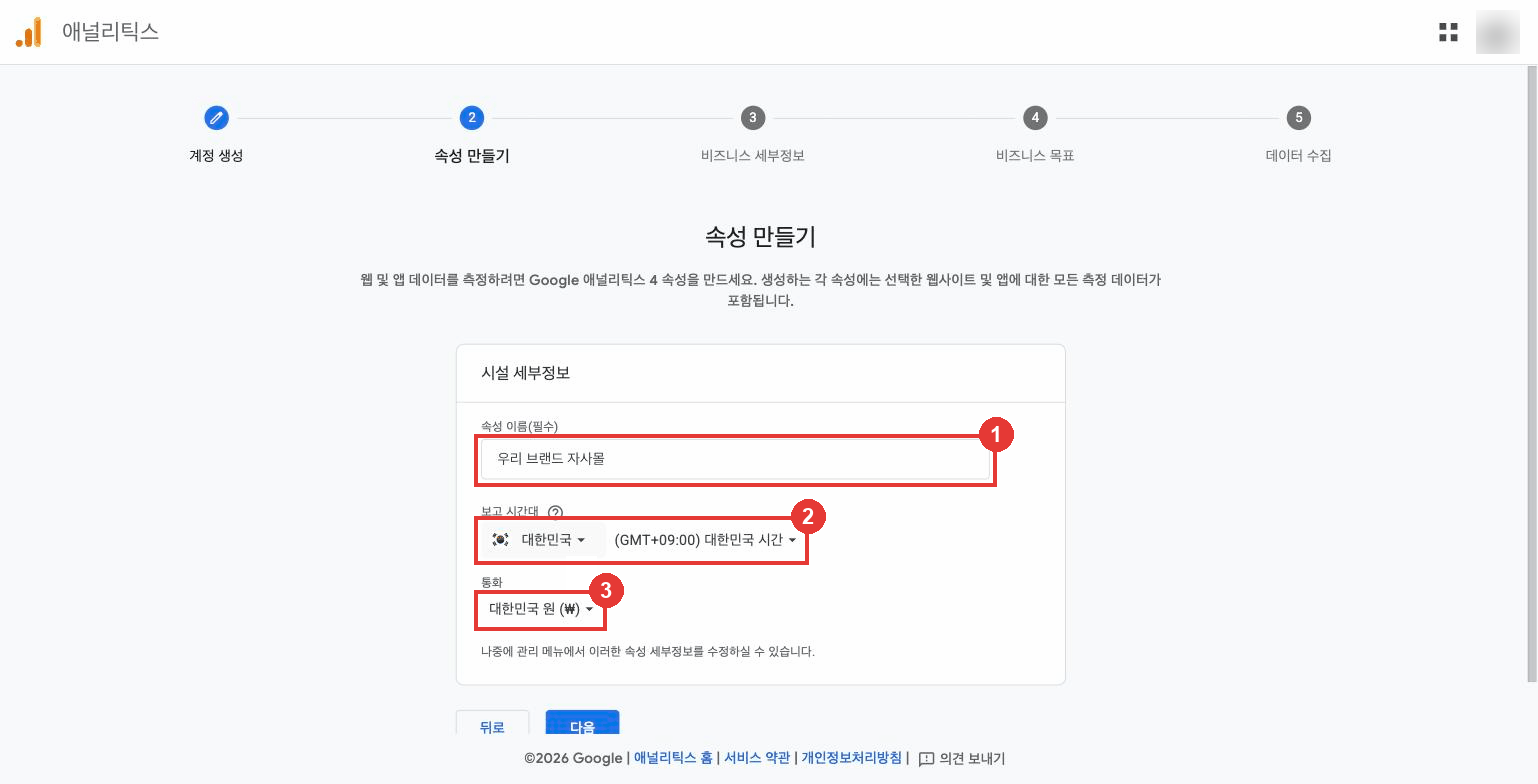
- Choose your business details and objectives, press
Createand accept the terms of service. - Pick
Webas the platform, enter your primary domain as the website URL and the store name as the stream name, then pressCreate stream. Leave enhanced measurement switched on. - Copy the
Measurement ID(starting with G-) shown in the stream details. You need it in step 3).
The steps follow Google's Analytics setup help.
2) Create a GTM container and install it in Cafe24
Pasting a bare gtag with the measurement ID does collect page views. But once you add the purchase event, a Meta pixel or Google Ads enhanced conversions, managing everything in GTM is easier. You never have to reopen the Cafe24 screen to change a tag.
- In Google Tag Manager press
Create Account. Use the company name as the account name (1),South Koreaas the country (2), the store domain as the container name (3) andWebas the target platform (4). PressCreateand accept the terms.
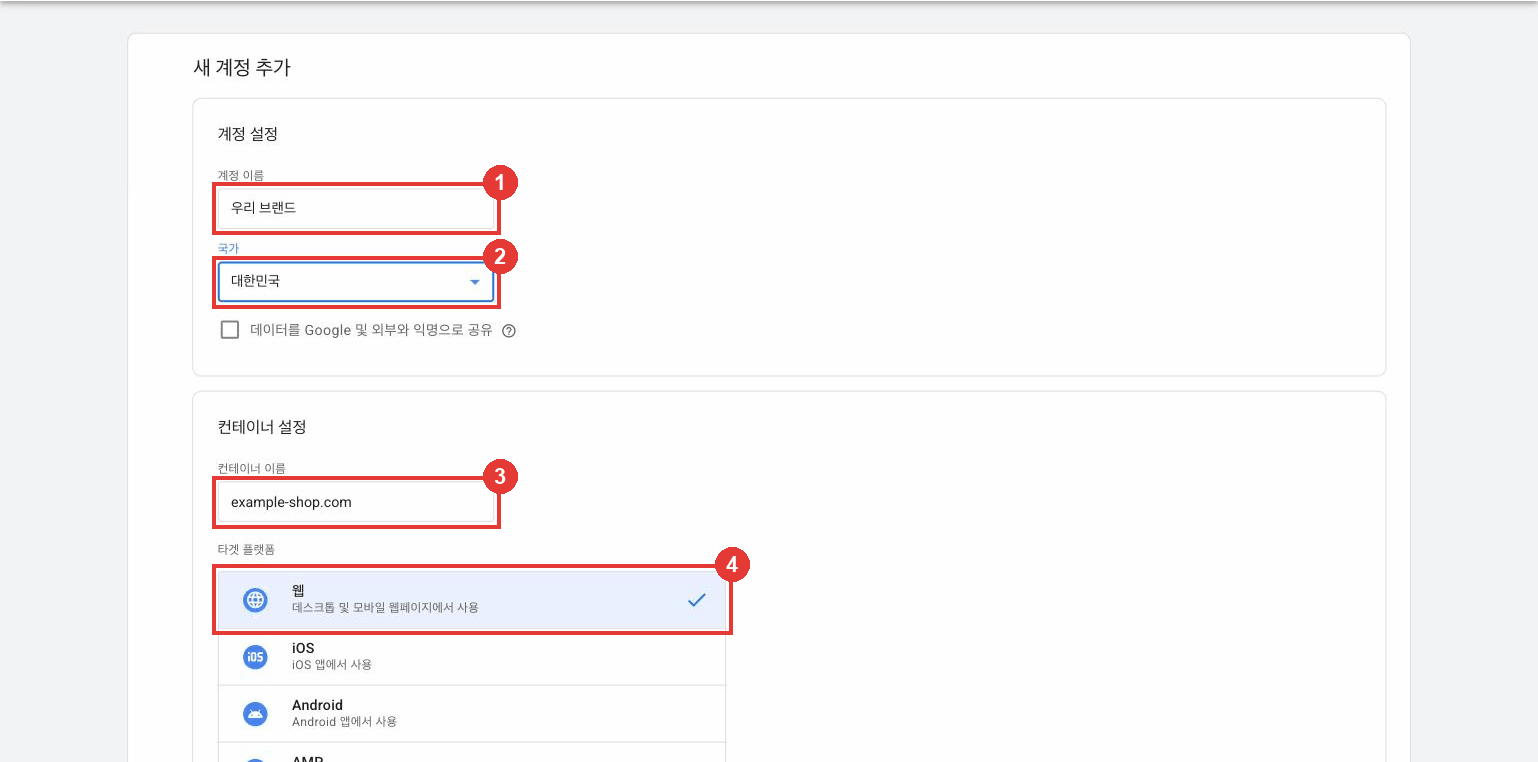
- A window with two installation snippets opens right away. If you closed it, reopen it under
Admin→Install Google Tag Manager. - In the Cafe24 admin go to
Store settings→Basic settings→Store info→Search engine optimization (SEO), openAdvanced settingsat the bottom and findDirect code input.
| GTM installation snippet | Cafe24 Direct code input |
|---|---|
First snippet (starts with <script>) | Head area |
Second snippet (starts with <noscript>) | Body area |
- Paste into both the PC store tab and the mobile store tab, then press
Save. According to Cafe24's help article, code in the Head area is added inside the head tag of every page. - Leave the
Google & YouTubechannel app's conversion tag in place. Adding another Google Ads conversion tag inside GTM would count each conversion twice.
3) Create the GA4 tag in GTM and publish
- In the GTM workspace open
Tags→Newand chooseGoogle Tagas the tag type. - Paste the measurement ID from step 1) into
Tag ID. - Choose
Initialization - All Pagesas the trigger. - Press
Preview, open your store URL and check that Tag Assistant shows the Google tag as fired. - Press
Submit→Publish. Nothing reaches the site until you publish. - When your own visit appears under GA4
Reports→Realtime, the installation is done.
The tag setup follows Google's guide to the Google tag in GTM.
4) Add the purchase event
Up to this point you see visits and page views but no revenue. Cafe24 exposes the order number, paid amount and ordered products as JavaScript variables on the order-complete page (/order/order_result.html). Sending those values as a GA4 purchase event puts revenue and purchased items into GA4. You create two tags and two triggers in GTM.
- Create a
Custom HTMLtag with the code below. Its trigger isPage Viewwith the conditionPage Pathcontainsorder_result.
<script>
  (function () {
    var d =
      (window.CAFE24 && CAFE24.FRONT_EXTERNAL_SCRIPT_VARIABLE_DATA) ||
      window.EC_FRONT_EXTERNAL_SCRIPT_VARIABLE_DATA;
    if (!d || !d.order_id) return;
    var items = (d.order_product || []).map(function (p) {
      return {
        item_id: String(p.product_no),
        item_name: p.product_name,
        price: Number(p.product_price),
        quantity: Number(p.quantity),
      };
    });
    window.dataLayer = window.dataLayer || [];
    dataLayer.push({ ecommerce: null });
    dataLayer.push({
      event: "purchase",
      ecommerce: {
        transaction_id: String(d.order_id),
        value: Number(d.payed_amount),
        currency: "KRW",
        shipping: Number(d.total_basic_ship_fee || 0),
        items: items,
      },
    });
  })();
</script>
- Create a
Custom Eventtrigger with the event namepurchase. - Create a
Google Analytics: GA4 Eventtag. Enter the measurement ID, set the event name topurchase, tickSend Ecommerce dataand keep the data source asData Layer. Use thepurchasetrigger from 2). - Place one test order in
Previewmode. When GA4Admin→DebugViewshows the purchase event with a transaction ID, pressSubmit→Publish.
The variable names (order_id, payed_amount, order_product) are the values Cafe24 places on the order-complete page. While in preview, type CAFE24.FRONT_EXTERNAL_SCRIPT_VARIABLE_DATA in the browser console once to confirm the values are there before publishing. The event format follows Google's GA4 ecommerce events reference, and the Cafe24 variables follow a Cafe24 GA4 ecommerce setup walkthrough.
Naver Pay orders never pass through this page. That is why the GA4 purchase count is always lower than the order count in the Cafe24 admin.
5) Verify and invite your analyst
- In GA4 go to
Admin→Property access management, press+and enter the analyst's email. GiveEditorto the person who sets up tags and events, andViewerto someone who only reads reports. Roles are explained in Google's access management help. - Under
Admin→Key events, markpurchaseas a key event. - Under
Admin→Product links→Google Ads links, link the Google Ads account. Once linked, Google Ads can import the GA4 purchase as a conversion. Because the Cafe24 app's tag already counts checkout completions, keep the imported conversion as a secondary conversion to avoid double counting. The steps follow Linking GA4 and Google Ads.
Checklist
| What to check | Screen | Expected |
|---|---|---|
| Tag is on the site | Storefront page source | Code starting with GTM- appears in both head and body |
| GTM is published | GTM → Versions | The latest version shows as published |
| Data is arriving | GA4 → Reports → Realtime | Your own visit shows as 1 user |
| Purchases are captured | GA4 → Admin → DebugView | After a test order, the purchase event carries a transaction ID |
| Time zone and currency | GA4 → Admin → Property details | South Korea and South Korean Won |
| Analyst access | GA4 → Admin → Property access management | The analyst's email is listed as Editor |
Five things that commonly go wrong
Nothing shows in Realtime. Most often GTM was never published with Submit → Publish, or the code went into the PC store tab only and the mobile tab was skipped. Turn off ad-blocking extensions and reload in an incognito window.
The purchase event stays at zero. Check that the Custom HTML tag's trigger condition is order_result. Place a test order in preview, confirm that purchase lands in the dataLayer, then check whether the container was published.
GA4 purchases are lower than Cafe24 orders. Naver Pay and Kakao Pay orders skip the Cafe24 order-complete page. The two numbers can never match, so compare them as a trend.
A _ga cookie exists but GA4 is empty. That cookie comes from the Merchant Center tag added by the Google & YouTube channel app. If the source has no measurement ID starting with G-, GA4 is not installed. Cafe24's own Cafe24 Analytics in the admin is a separate statistics tool as well.
I already pasted gtag and pixels into Direct code input. Google says to keep either the Google tag snippet or Tag Manager, not both; with both, page views are counted twice. If you are moving to GTM, build the Google tag and events in GTM first, delete the gtag from Direct code input, then publish the GTM version. Meta and TikTok pixels have their own menus in Cafe24's channel settings, so take them out of Direct code input and move them there. The order follows the Tag Manager migration guide.
Google Ads conversions doubled. The app's conversion tag and an Ads conversion tag added in GTM are counting the same checkout twice. Remove the Ads conversion tag from GTM. Setting the app's page-view conversion action to secondary in Google Ads keeps the conversion column from inflating.
An agency installing this for you needs Cafe24 admin access. Instead of handing over the master login, create a Cafe24 sub-operator account. Google Ads access is covered in requesting agency access to Google Ads, and the case where the Cafe24 app cannot see your Ads account in when Cafe24 can't find your Google Ads account.
Where Imagefactory helps
Imagefactory builds and runs an AI marketing platform and manages ad accounts for clients. When you hand over ad operations, the GA4 and GTM installation, the purchase event and the Google Ads conversion link are set up within the first week, and the conversion tracking on every linked ad account is watched so it does not silently break. GA4 tells you which visitors buy and where they came from. What moves results after that is which creatives run on which channel at what budget, and that is the operation Imagefactory takes on.