
How to Give an Agency Access to Google Ads — Manager Account Link vs. User Invitation
Imagefactory Engineering · Published 2026-09-07
When you hand Google Ads management to an agency, don't share your login — approve a link request from the agency's manager account (MCC) instead. Ownership and the payment method stay with you; the agency can only run campaigns. When the contract ends, you unlink them from the same screen.
Two options — we recommend the manager-account link
| Option | Who starts it | What you do | When to use |
|---|---|---|---|
| Manager account (MCC) link | The agency sends a request | Approve one invitation | Outsourcing day-to-day management |
| User invitation | You invite an email | Enter email + choose access level | Giving one person short-term access |
A manager-account link survives agency staff changes. A user invitation is tied to one email, so you re-invite every time the account manager changes.
Option 1. Approve a manager-account link request
1) Share your customer ID with the agency
After signing in to Google Ads, look at the top right next to your account name: the ten-digit number in the 000-000-0000 format is your customer ID. That number is all the agency needs to send a link request. No password involved.
2) The agency sends the link request
From its manager account the agency goes to Sub-account settings → Link existing account, enters your customer ID and sends the request. An invitation email lands in the inbox of anyone with admin access to your account.
3) Accept under Admin → Access and security → Managers
Click Accept request in the email, or approve inside Google Ads.
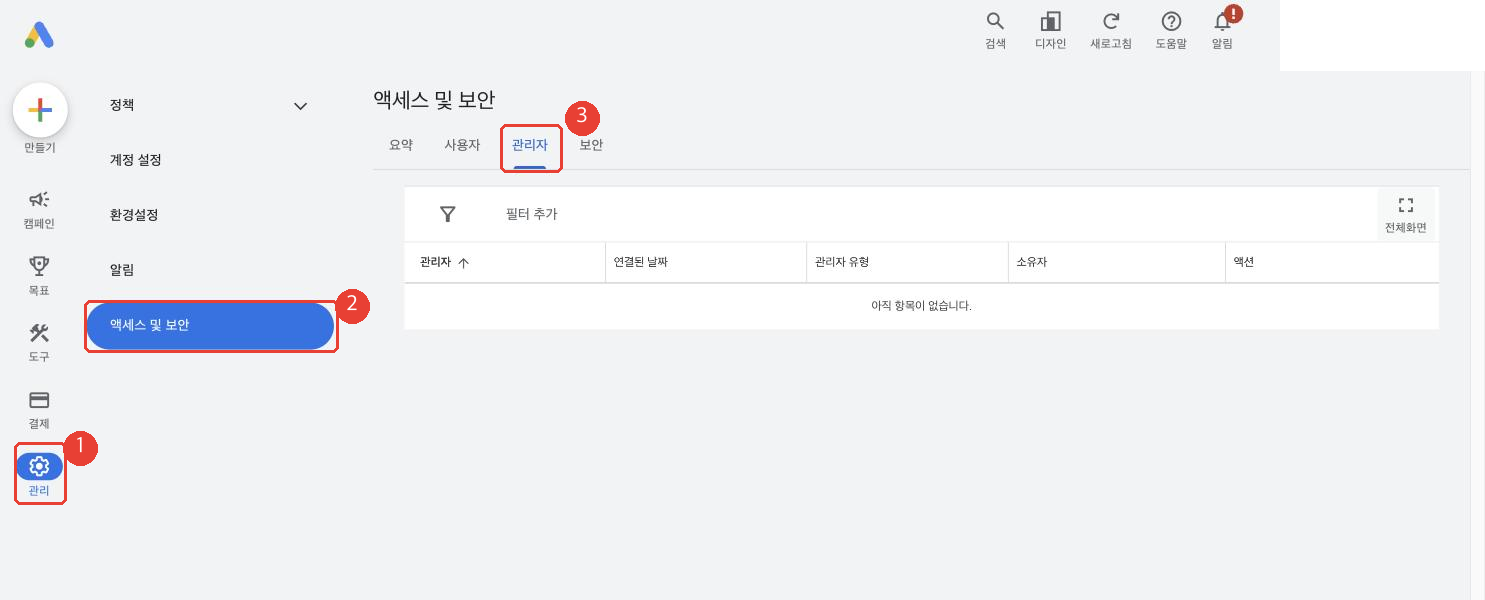
When the agency's manager account number appears in the Managers table, check it matches the number they gave you and click Accept. You'll get a confirmation email and the agency sees your account right away.
Option 2. Invite an agency contact as a user
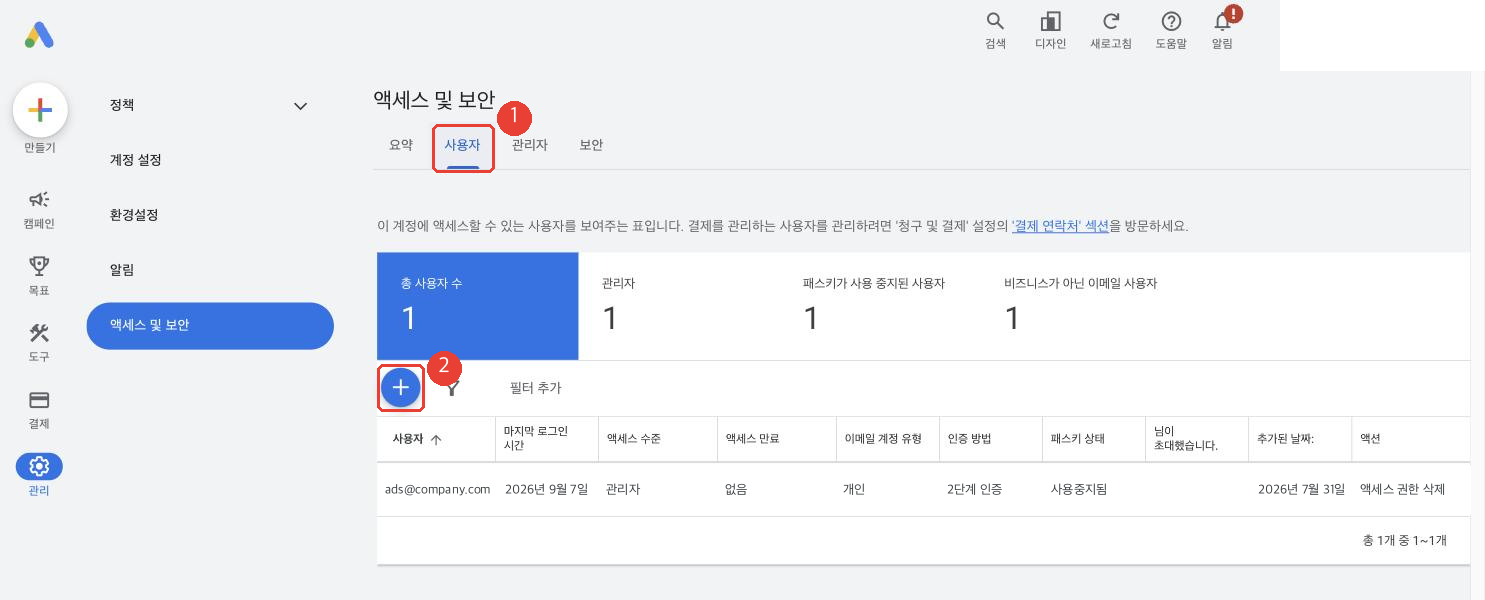
Go to Admin → Access and security → Users, click the blue plus button, enter the person's email, pick an access level and click Send invitation. They accept from the email link.
| Access level | What they can do | Fit for an agency? |
|---|---|---|
| Admin | Everything, plus add/remove users and approve manager links | Keep this for the owner only |
| Standard | Full campaign, budget and creative management | Right for agency work |
| Read only | Reports only | Audits and consulting only |
| Email only | Receives notification emails | Cannot manage anything |
Standard is enough for an agency contact.
How to revoke access
Same Access and security screen. On the Managers tab click Unlink next to the agency's manager account; on the Users tab click Remove access next to the person. Access ends immediately.
Three things that commonly block people
I can't see an Accept button. Only a Google account with admin access can approve. If yours is standard, ask whoever created the account, or have them promote you to admin.
Another agency is already linked. A client account can be linked to up to five manager accounts, so you can add a new agency without removing the old one. Still, unlink agencies whose contracts have ended so they can't keep touching the account.
I'm the only admin. If that login is lost, nobody can get in. Add a shared company account as a second admin.
If billing is also changing, use the Google Ads billing handover guide to separate direct card payments from management access.