
Switch Google Ads Agency Billing to the Advertiser’s Card
Imagefactory · Published 2026-09-28 · Updated 2026-09-29
Keep your existing Google Ads account and campaigns while moving billing to the advertiser’s own card. Check the payment setting, complete any required billing change and register the advertiser’s card.
What should each person prepare?
| Owner | Information |
|---|---|
| Advertiser | Legal business name, registration documents, billing address, Google account for billing and payment card |
| Previous contact | Paying manager name and ID, payment setting, responsibility for earlier charges |
The advertiser should enter card details directly in Google’s payment interface. Do not put card numbers or security codes in shared documents. Agree on responsibility for costs before and after the transfer date.
1) Check the current billing setup
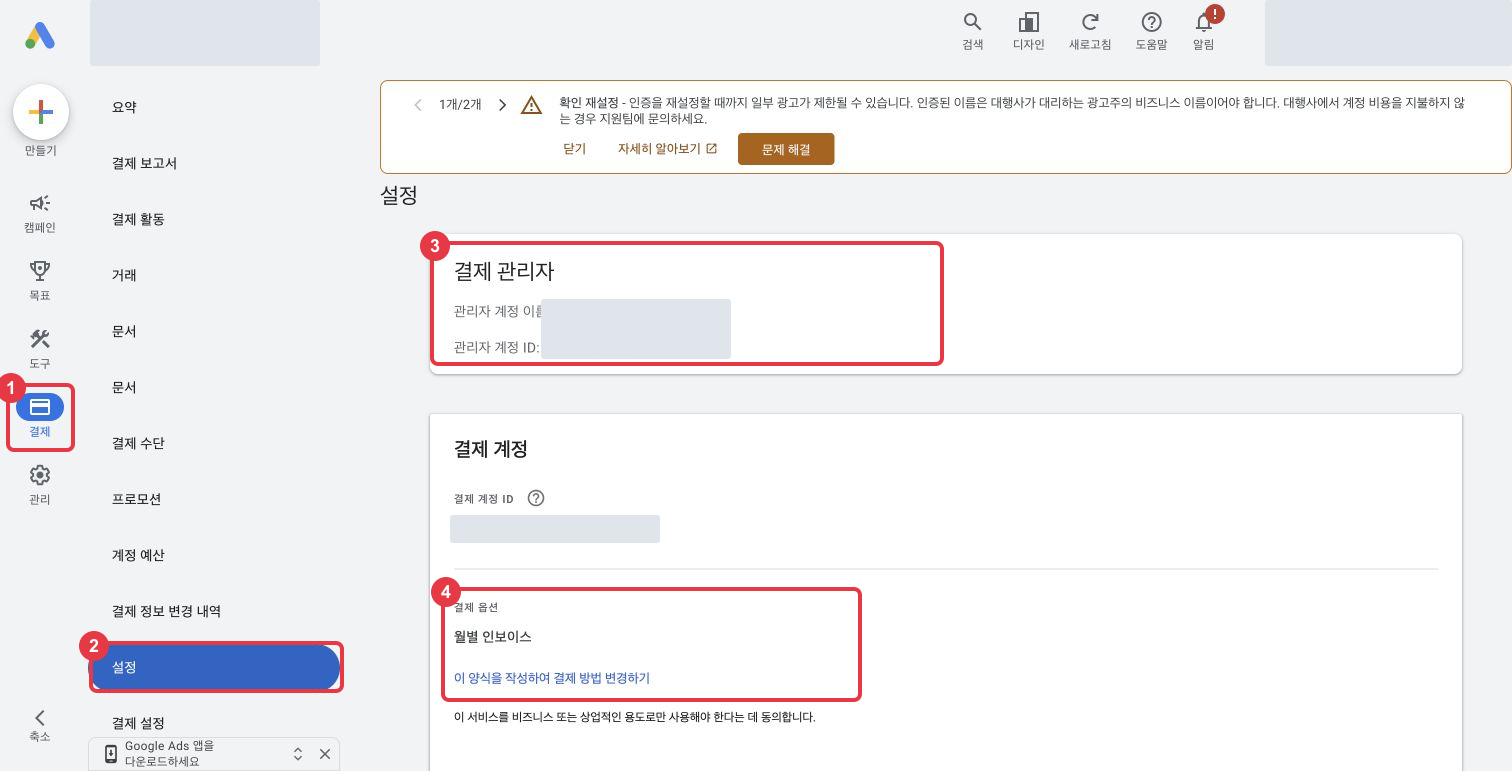
- Open the advertiser’s account and select Billing.
- Open Settings.
- Record the Paying manager name and ID. Separately check the organization name under Payments profile further down the page.
- Check Payment setting. For monthly invoicing, use the change-payment link or the official request page below.
| Current setup | Route |
|---|---|
| Monthly invoicing → advertiser card | Ask support to confirm available postpay or prepay options and the conversion process |
| Already postpay or prepay → different payer | Billing → Settings → Change who pays; check access and contact support if unavailable |
| Already billed to the advertiser on postpay or prepay | Add the card; for postpay, set it as the primary payment method |
This guide focuses on the first route. Payment options depend on billing country, currency and account eligibility. Payment settings · Change postpay or prepay payer
2) Request the switch to direct card payments
- Open the payment settings change request and select the option to switch between postpay, prepay or monthly invoicing.
- Select Contact us and describe the account and intended change. Record the case number, required approvals and schedule provided by support.
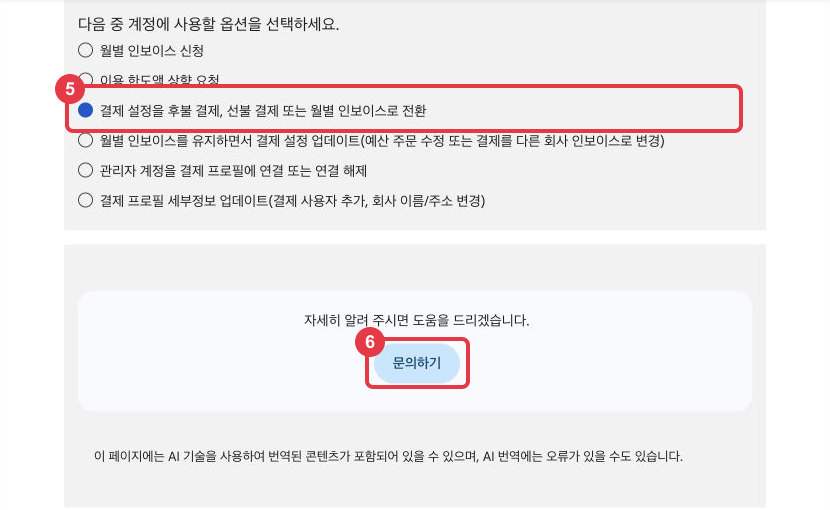
Replace the placeholders in this request:
We want to keep Google Ads account [customer ID] and its campaigns while moving to direct card payments under [advertiser legal business name]. The current payment setting is [setting], and the paying manager is [name and ID]. Please confirm available payment options, required approvers, the effective date, settlement of previous charges and advertiser verification tasks.
3) Set up the advertiser’s billing details and card
- Follow support or the Change who pays workflow to select or create a payments profile under the advertiser’s business. Do not rename another company’s profile to the advertiser.
- Open Billing → Settings → Payment methods → Add payment method. Have the advertiser enter their card directly, set it as primary for postpay and save. Complete required card verification and confirm the effective date.
- Open Admin → Policy → Account and check advertiser verification tasks and deadlines. Answer using the actual advertiser, agency relationship and payer details.
- Check billing details, the effective date and outstanding charges using the table below.
Card and verification workflows vary by account. Follow the instructions shown in that account. No billing transfer, card registration or verification reset was executed to create these screenshots. Add a payment method · Verification changes
How do you confirm the handover is complete?
| Item | Completion check |
|---|---|
| Direct payment | Advertiser payments profile and new payment method are active |
| Settlement | Responsibility for prior and outstanding charges is agreed |
| Verification | Results, remaining warnings, tasks and deadlines are checked |
| Campaigns | Existing budgets, bids and statuses are checked alongside serving diagnostics and actual impressions |
Do not unlink the current paying manager before the new billing setup is active. Google warns that doing so can deactivate billing and stop ads. Effects of unlinking
How do you resolve common blockers?
- Change who pays is missing: Check the paying manager in Billing → Settings and ask that manager or Google support to handle the change.
- Is adding a card enough? Yes if the advertiser already holds the postpay or prepay profile. For agency monthly invoicing, request the payment setting and payer change first.
- Verification is complete but a reset warning remains: Check Admin → Policy → Account for tasks and deadlines, then provide actual advertiser and payer details to support.
- There is a remaining account budget: Do not treat a spending allowance as prepaid funds. Check actual balances and outstanding invoices separately.