
Naver Ads Agency Access: Manager Link or Member Invite
Imagefactory Engineering · Published 2026-09-07 · Updated 2026-09-18
Since March 2026 Naver Search Ads and Naver Display Ads share one console, the Naver Ads Center (광고주센터), and the way you give an agency access changed with it. Instead of sharing a login, you either approve a link request from the agency's manager account or invite the agency contact as a member of your ad account. Billing and the account-owner role stay with you, and access can be removed at any time.
Three permission levels
| Level | What it allows | Fit for an agency? |
|---|---|---|
| Account owner (계정 책임자) | Everything: billing and settlement, ad operations, member management. One per account | Keep this yourself |
| Operations manager (운영 관리) | Create and manage campaigns and creatives, view performance, request top-ups and refunds, manage members | Right for agency work |
| Viewer (운영 조회) | View running ads and performance only | Audits and consulting only |
Give the agency Operations manager. Each member can hold only one level per account. Agency members who come in through a manager-account link enter your ad account with the level they hold in the agency's manager account; even the manager account's owner enters as Operations manager.
Option 1. Approve a link request from the agency's manager account
Best when the agency runs many advertisers. Agencies hold a manager account (관리 계정); linking your ad account to it gives the agency's members access. Staff changes on the agency side no longer need your action, so this is the route we use.
- Share your ad account name and number with the agency. In Ad account management the number is shown in parentheses next to the account name.
- Only a manager account can send a link request. The agency opens its manager account's
Settings→Permission management→Ad account links(광고 계정 연동) tab, clicksLink request, searches for your ad account and sends the request. - In your ad account open
Settings→Permission management→Manager account links(관리 계정 연동), review the request and approve it. Check that the manager account name and number match what the agency told you before approving.
After approval your account appears in the Linked list of the agency's Ad account links tab, and agency members enter your account with the level they hold in the manager account.
Option 2. Invite the agency contact as a member
Best when you want to open access to one person quickly. First get the contact's Naver Ads Center login ID from the agency.
1) Open your ad account from Ad account management
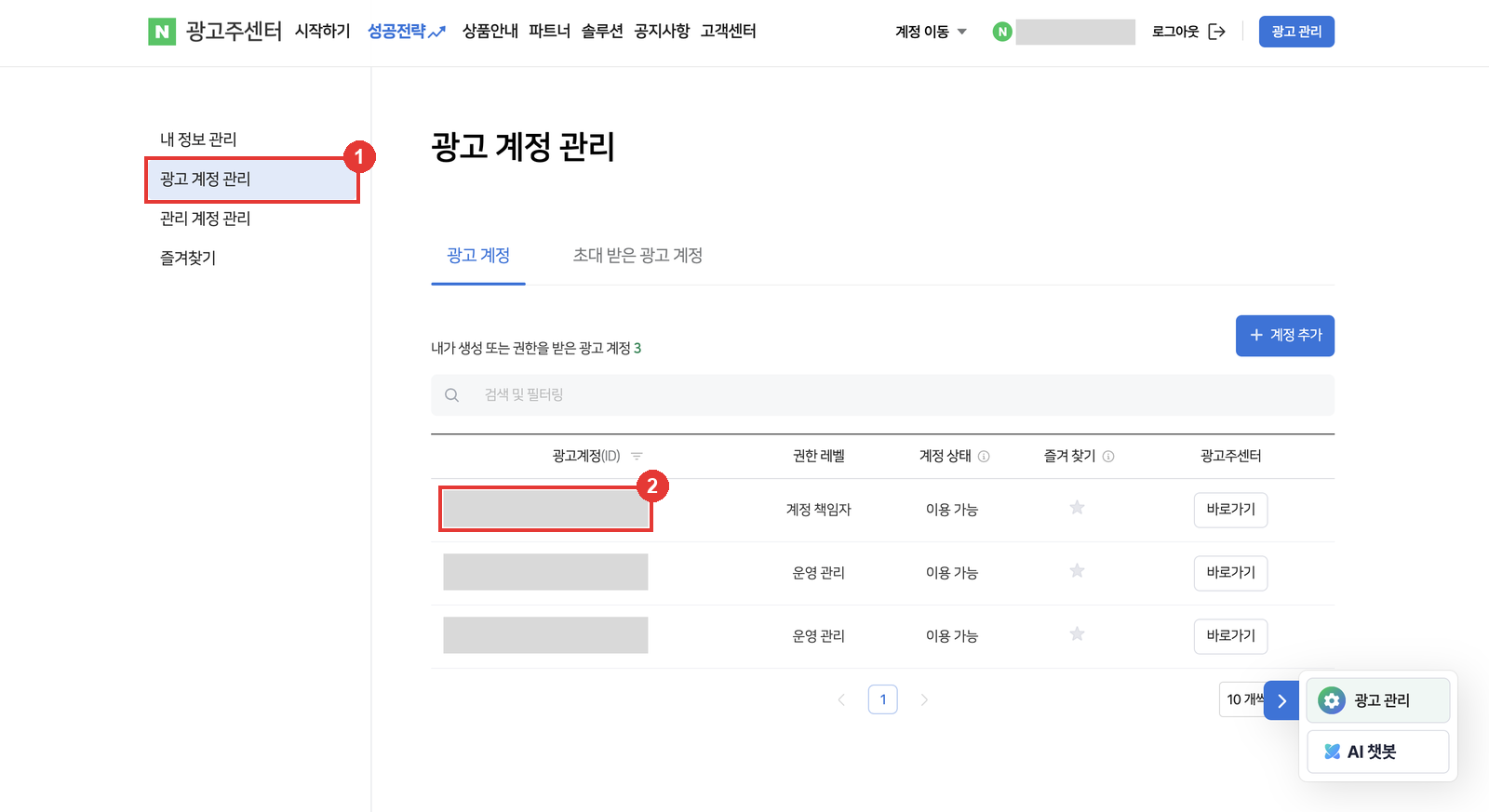
Sign in to the Ads Center and open Ad account management (광고 계정 관리). Clicking your ID at the top right leads to the same screen. Click the ad account name in the list to enter that account. Invitations can only be sent from accounts where your level is Account owner or Operations manager.
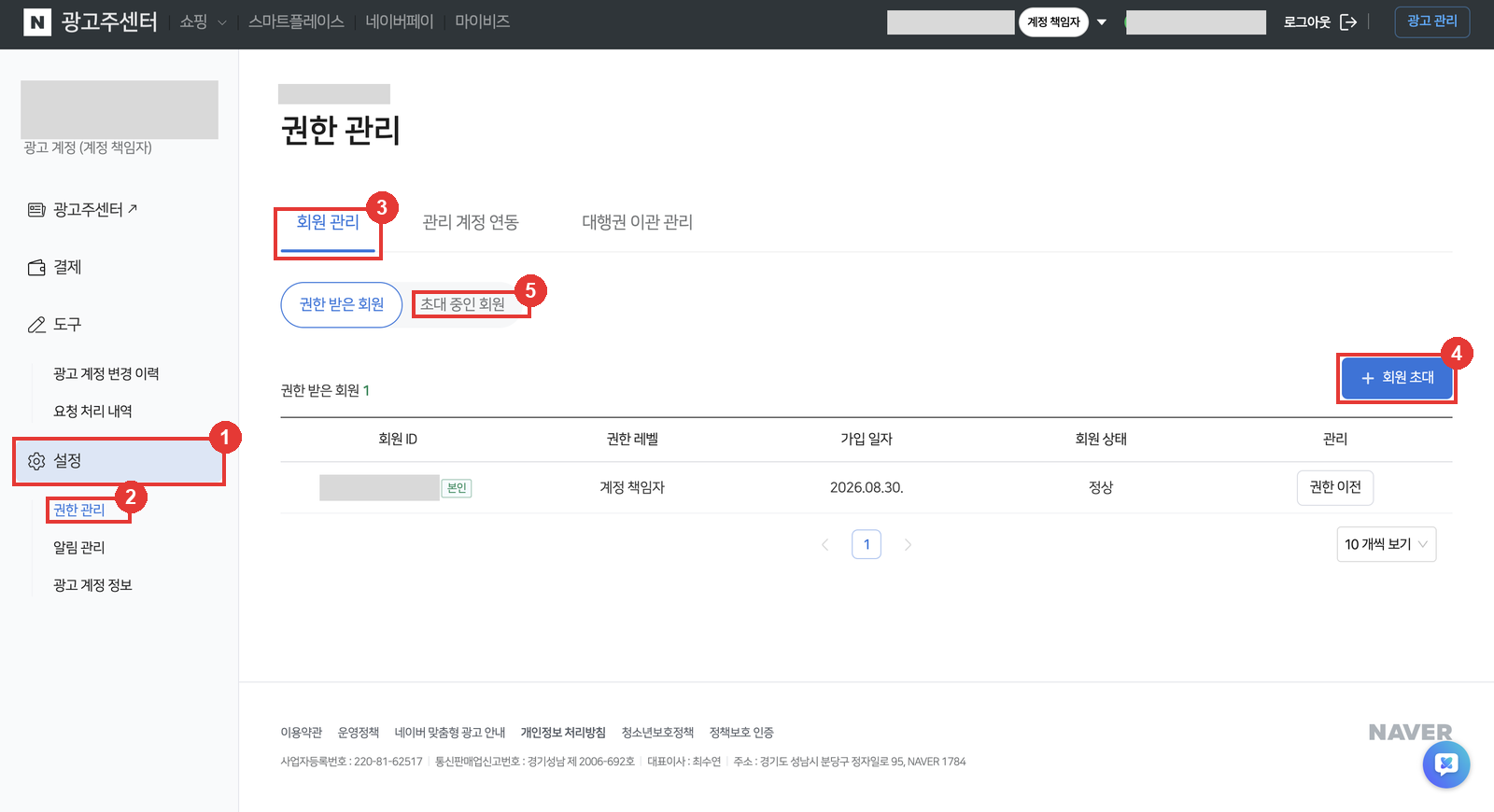
2) Go to Settings → Permission management → Members and click Invite
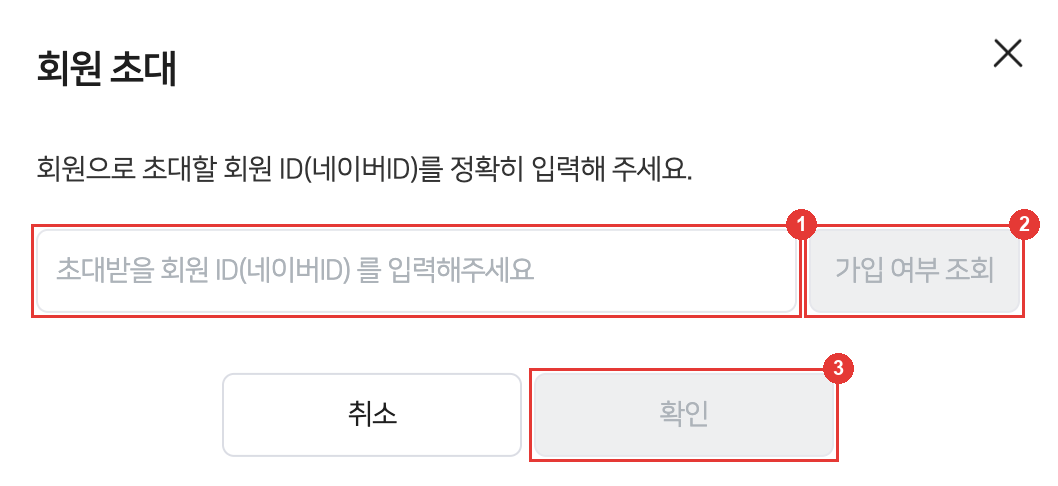
In the left menu open Settings (설정) → Permission management (권한 관리) → Members (회원 관리). Above the member list is an Invite member (회원 초대) button. Accept the invitation policy notice if it appears, enter the contact's Naver ID and click Check membership (가입 여부 조회). Once the ID is confirmed, choose Operations manager and click OK to send the invitation. Any member with the Account owner or Operations manager level can send invitations.
3) The contact accepts
Once the contact accepts from their own Ads Center, they move to the Members with permission list. Until then they sit in the Pending invitations tab, where you can cancel or change the level.
How to revoke access
Same Settings → Permission management screen. On the Members tab click Remove permission (권한 해제) next to the contact. A manager-account link is removed by the agency on its manager account's Ad account links tab with Unlink (연동 해제); your own Manager account links tab lists the manager accounts linked to your ad account. Member permissions can be removed by either side.
Every grant and removal is logged under Tools → Ad account change history.
Good to know
- Level changes are made by the member who granted the permission and take effect once the receiving member approves. The account-owner role cannot be edited, only transferred through the
Transfer ownershipflow. - The third tab under
Permission management,Agency rights transfer(대행권 이관 관리), delegates ad operations to the manager account of an official Naver partner agency. It requires a prior contract with the partner and comes in two modes:대행권 이관(you still receive tax invoices yourself) and대행권 이관 및 세금계산서 위임(the partner also issues tax invoices). Advertisers with an active transfer are excluded from the 5% Biz-coupon rebate on paid search-ad spend that self-managed advertisers receive. If the agency also asks for a partner agency-rights transfer, you approve it on this tab; it is not needed when you only grant access. - The old Search Ads system's
My info→Permission settingsmenu (before March 2026) has moved toPermission managementin the unified Ads Center.
The first thing an agency does after access is conversion tracking. For a Cafe24 store continue with Naver Ads conversion tracking on Cafe24, and open the Cafe24 admin side with a Cafe24 sub-operator account.