
Upload Naver GFA Performance Reports to Your Dashboard
Imagefactory Engineering · Published 2026-09-26
Naver's performance display ads (GFA) have an official API that is open only to certified partners, so connecting an ad account cannot pull GFA results. Instead, download the performance report from the Naver Ads Center and upload it: GFA then shows up in the dashboard under the Naver channel, next to Naver Search Ads. We accept one file type: a performance report at campaign level, by day, with the per-type conversion columns turned on.
Which files work
| File | Accepted | Why |
|---|---|---|
| Performance report (analysis unit Campaign, period unit Day, per-type conversion columns) | Yes | It has results per day and per campaign, including purchase counts |
| All-campaigns list export | No | The file has no date range, so the results cannot be tied to days |
| Ad group or creative level performance report | No | Campaigns without creative rows, such as ADVoost Shopping, can be left out |
| Performance report without conversion-type columns | No | Purchases cannot be separated from add-to-cart events |
Downloading the performance report
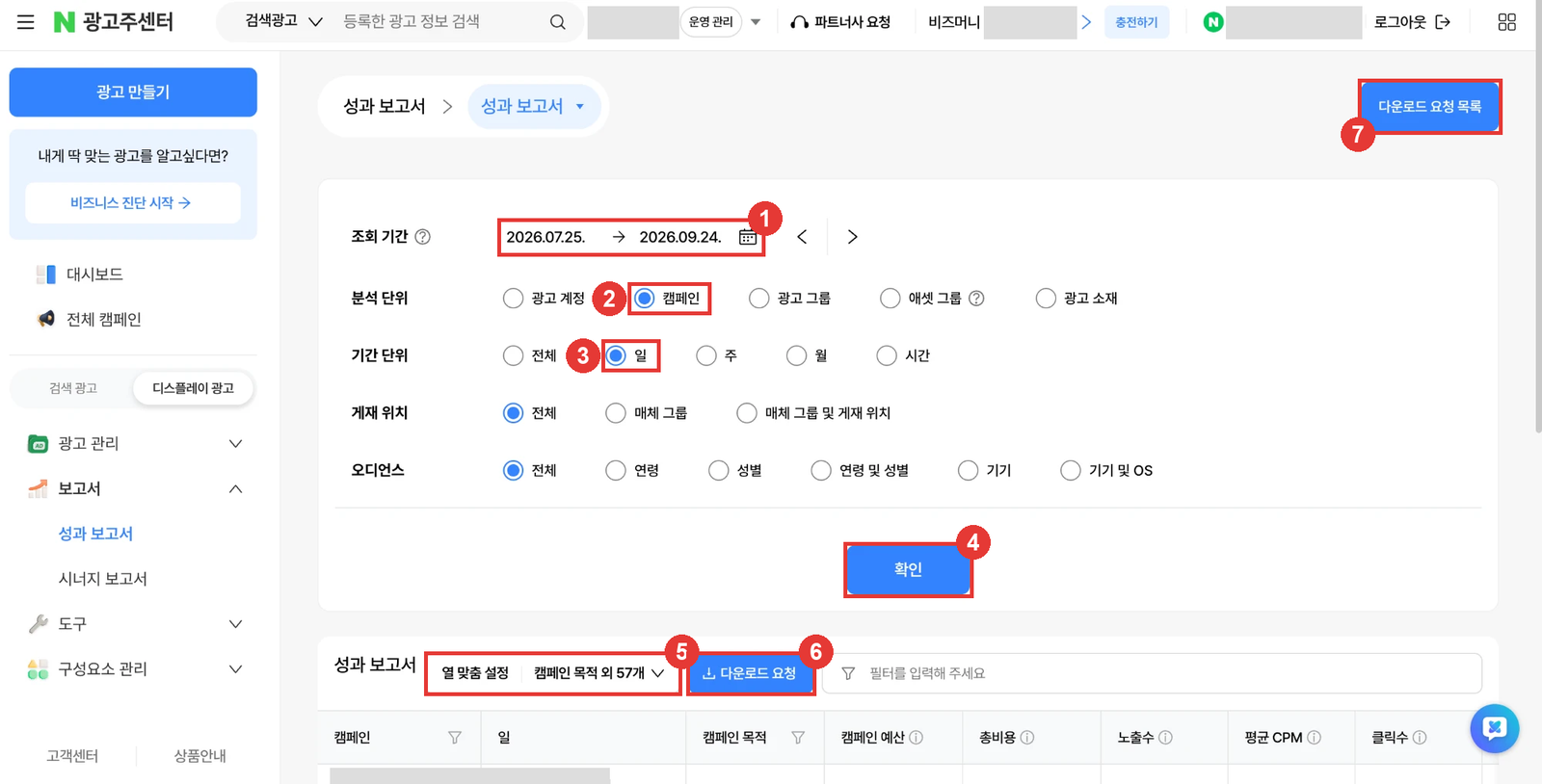
In the Naver Ads Center switch to 디스플레이 광고 (Display ads), then open 보고서 (Reports) → 성과 보고서 (Performance report) in the left menu.
- Pick the date range. With the Day period unit one request covers at most 62 days; split longer periods into several files.
- Set analysis unit (분석 단위) to
캠페인(Campaign). - Set period unit (기간 단위) to
일(Day). Leave placement and audience on전체(All). - Click
확인(Confirm) to load the table. - Open
열 맞춤 설정(Column settings) and turn on 구매완료 수 (purchases) and 구매완료 전환매출액 (purchase revenue) under conversions. Turning on every conversion-type column is the most accurate. - Click
다운로드 요청(Request download). - Download the file from
다운로드 요청 목록(Download request list) at the top right. You get a zip namedReportDownload_aa_<account number>_PERFORMANCE_….zip.
Uploading to Imagefactory
In ad operations open Integrations in the left menu and pick the advertiser. Under Channels without an API → Naver GFA, choose the zip without unzipping it and click Upload. You can upload several files at once. The period, campaign count, spend and purchases appear right away, and the campaigns appear in the dashboard's Naver card with a GFA badge. Selecting Naver in the channel filter shows Search Ads and GFA together.
If you use Imagefactory from Claude or ChatGPT, attach the zip in the conversation and ask it to upload your GFA results. The assistant reads the file, shows a summary, and saves it after you confirm. If you uploaded under the wrong account, remove it under Uploaded ad accounts on the Integrations screen, or ask the assistant to remove that GFA account.
Good to know
- Uploading the same period again replaces it. Results can change for up to 48 hours after invalid-click review, so overlap the last 2–3 days on your next upload.
- Conversions and revenue use purchases only. Naver's total conversions also count add-to-cart and sign-ups, which would inflate ROAS, so only the purchase columns are used.
- Total cost includes VAT. It matches the total cost on the GFA screen.
- Keep the file name. The ad account number in it tells us which account the results belong to. If you renamed the file, a field for the account number appears when you upload.
- Days you have not uploaded stay empty. Unlike connected channels nothing is filled automatically, so the Naver card shows the last GFA upload date and how many days are missing.
- Results are available for the last two years only. Download older periods before they expire.