
Let's Get Your Own Store into Naver Shopping Search
Imagefactory Engineering · Published 2026-09-15
If your store runs on Cafe24, Imweb or Godo, it has to join Naver Shopping Partner Center on the CPC package before its products can appear in Naver Shopping search. A Smart Store is connected at sign-up; an independent store joins directly. Submit the application with three documents, pass the review, register your product DB URL and add a prepaid balance, and exposure starts. Let's go through it in order.
Does my brand need Naver Shopping search?
If your brand sells products that customers find by searching a product or category name, Naver Shopping search is the first door they come through. Results show the product photo, price and seller right away, so people who searched to buy land directly on your store.
| Your brand | Examples | Is shopping search a fit? |
|---|---|---|
| Sells own-made or small-batch products | Fashion, food, daily goods, pet supplies, home items | Best fit. Each product takes one slot in the results |
| Distributes standardized branded goods | Appliances and computers, cosmetics, formula, diapers, wipes | Works when your price and shipping compete. Sellers of the same item are grouped into price comparison |
| Sells through quotes and consultation | Construction, custom builds, B2B equipment | Site search ads such as Power Link fit better than shopping search |
Your own store can be listed just like a Smart Store. Products appear next to Smart Store products in the results, and a click lands on your brand's own site. A Smart Store is connected with one consent at sign-up; for your own store, follow the five steps below in order.
1) Prepare three documents and a checkout screenshot
| Document | Where to get it | Requirement |
|---|---|---|
| Business registration certificate | Hometax | Company name, representative and address must match your store footer |
| Mail-order business report | Gov24 | The report number must match your store footer |
| Proof of escrow (buyer protection) enrollment | Your PG's admin console or bank | Save it as an image file |
| Checkout page with escrow applied | Screenshot of your store's payment screen | The escrow terms checkbox or escrow banner must be visible |
| Category-specific permits | Health functional food, cosmetics, processed food and similar permits | Only if you sell those categories |
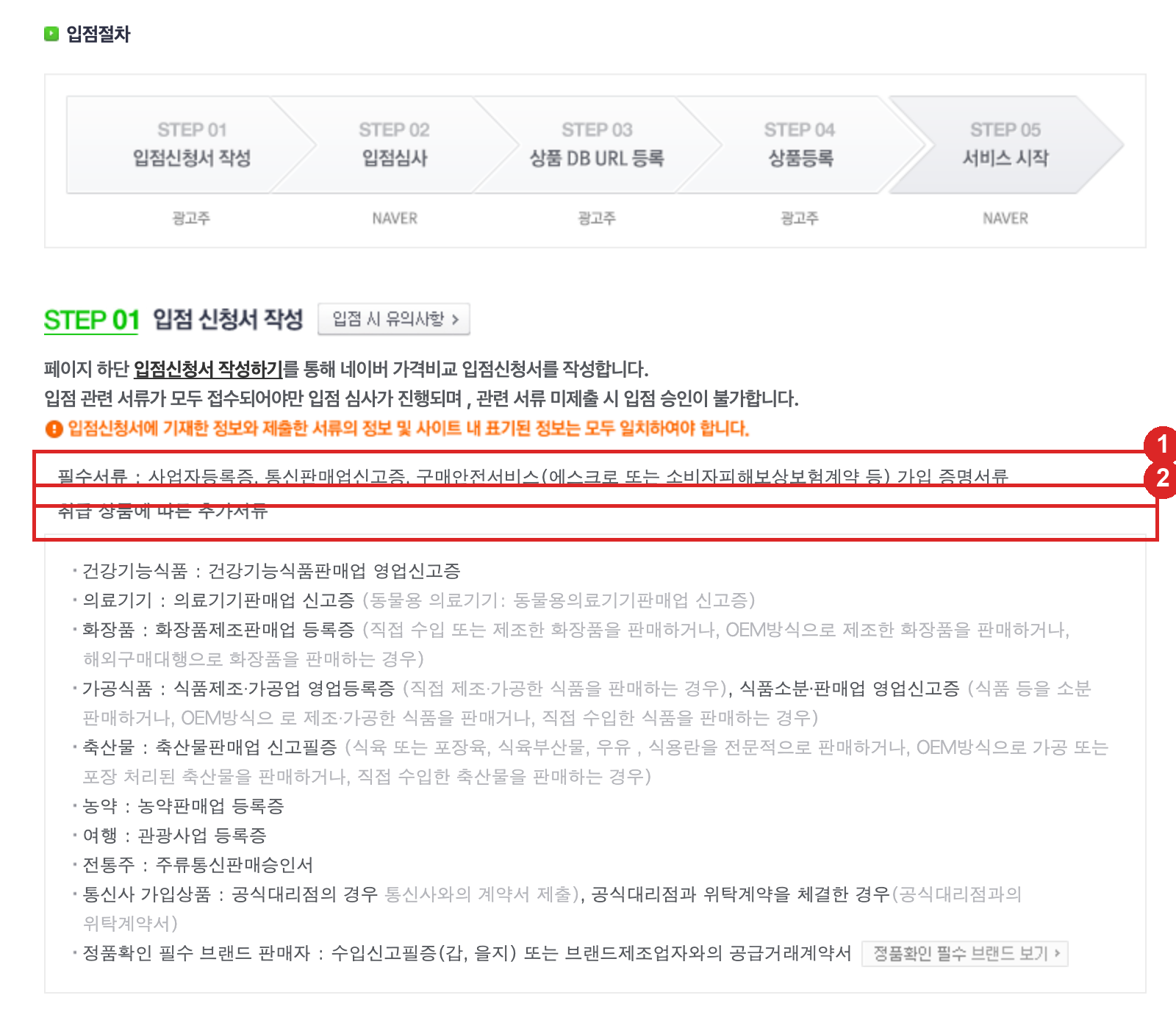
Before you gather documents, bring the store itself in line with Naver's listing requirements.
- Show six items in the store footer: company name and representative, address, phone and email, business registration number, mail-order business report number, and the Fair Trade Commission business lookup link.
- Apply escrow to every payment amount. On Cafe24, go to
Store settings→Payment settings→Payment method settings, setBuyer protection servicetoPG escrowon, andApplicable payment amounttoAll amounts. - Display prices including VAT and, per Cafe24's guidance, accept both cash and card payments.
- Use a Latin-alphabet domain as the primary domain. Naver Shopping does not support Korean-character domains, so use a Latin domain or its Punycode form.
- Let visitors view products without logging in, and split products whose price changes with a required option into separate products.
2) Fill in the application
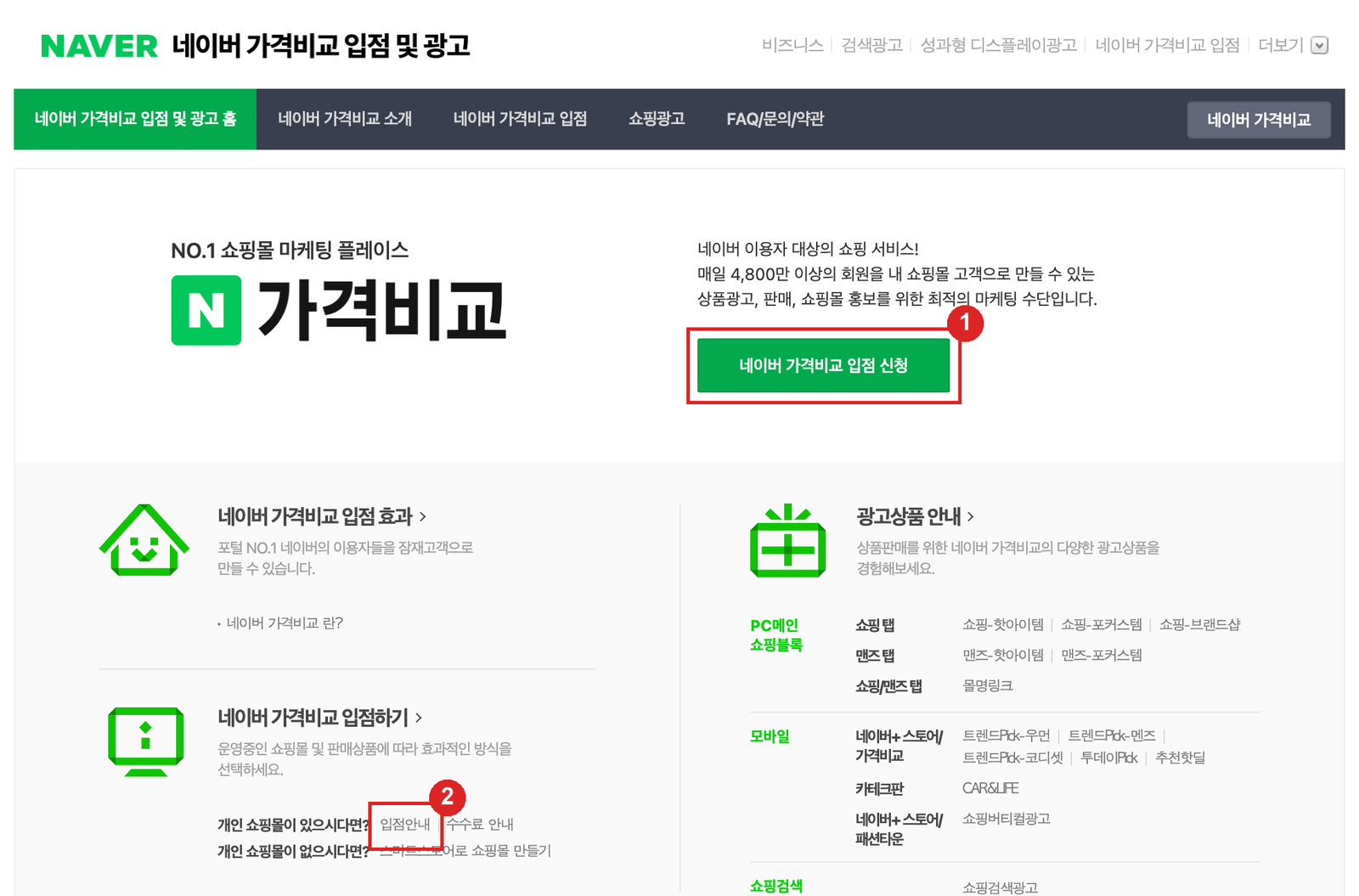
- On the Naver price comparison listing page, click the green
네이버 가격비교 입점 신청(Apply for listing) button on the right. On Cafe24 theApplybutton underSales channels→Naver→Naver Shopping guide→Service guideleads to the same place.
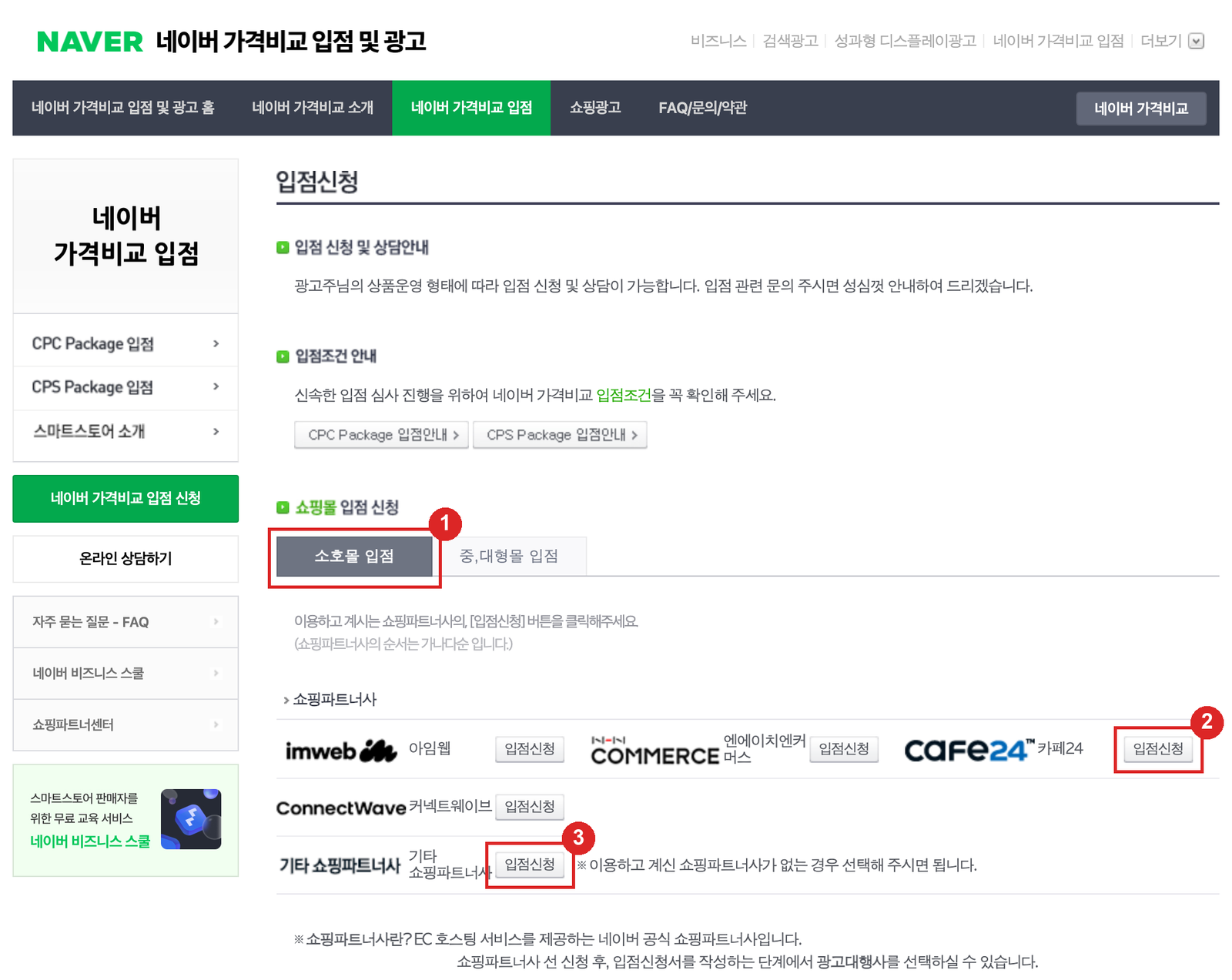
- On the application page keep the
소호몰 입점(small store) tab and click입점신청(Apply) next to your platform in the shopping partner list. Cafe24, Imweb, NHN Commerce (Godo) and ConnectWave link to their own guide pages. - If your platform is missing or you built the store yourself, click
입점신청next to기타 쇼핑파트너사(other partners).
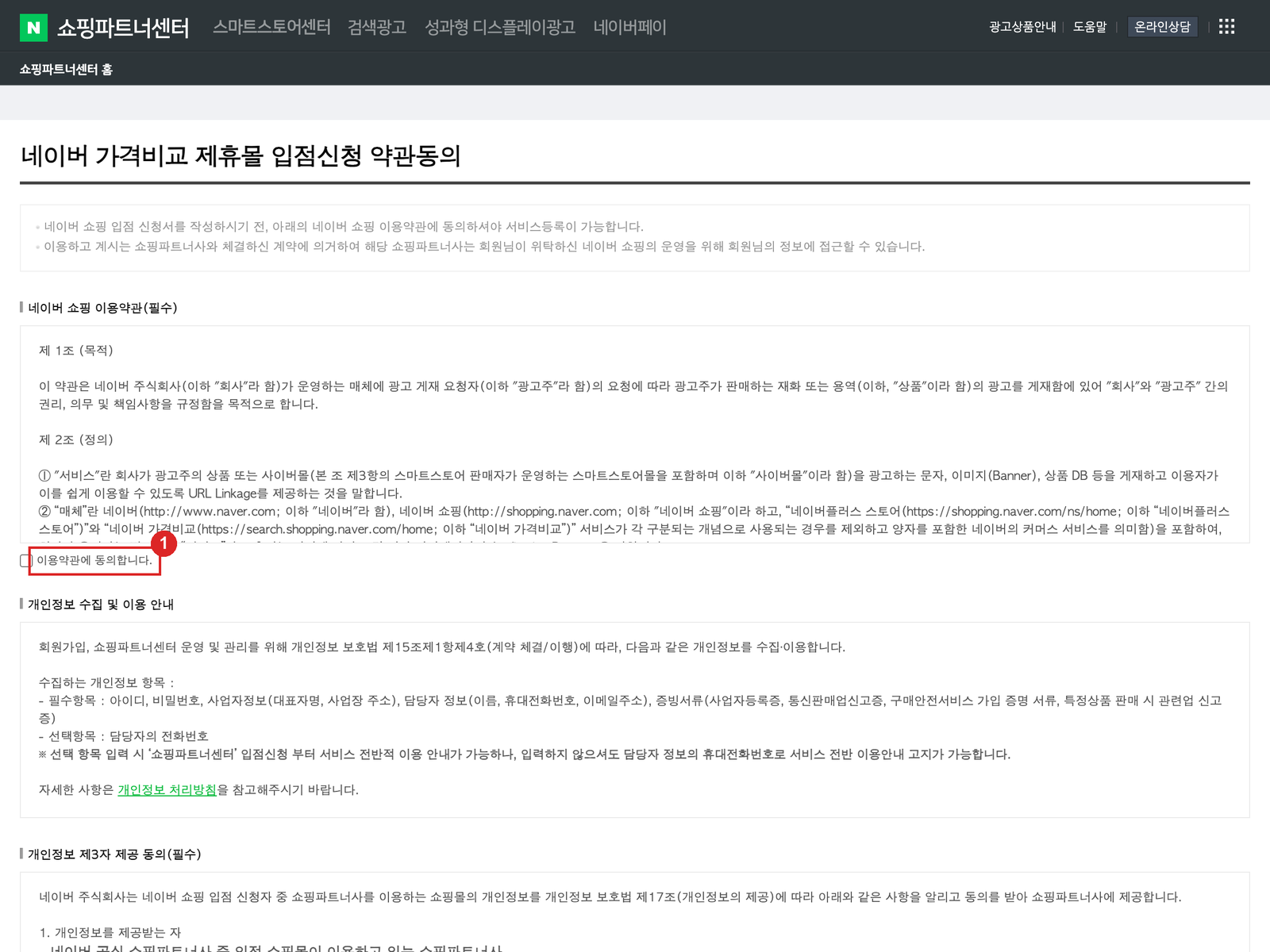
- On the Shopping Partner Center terms screen, agree to the Naver Shopping terms and the personal-data notice and continue.
- In the application form, enter the store and business details and attach the documents from step 1. The application, the documents and the information displayed on the store must all match.
- Review starts once every document is in and takes 1–2 business days. The one-time listing fee of ₩99,000 is currently waived.
3) Generate the product DB URL (EP) in your store
| Platform | Path | Generated |
|---|---|---|
| Cafe24 | Admin Sales channels → Naver → Naver Shopping settings → Naver Shopping DB URL on → Save | Next morning |
| Imweb | Admin Settings → Data connections → Naver Shopping → switch on → Save | Within about an hour |
| Godo | Admin Marketing → Common inflow script, register the Naver common auth key → Marketing → Naver Shopping settings → on, v3.0 → Copy full product URL | Immediately |
| Makeshop | Admin Add-on services → Add-on services → Channels → Naver Shopping → Copy full URL | Immediately |
| Sixshop | Store manager Add-ons → Naver Shopping → Full EP URL | Every 2 hours |
| Custom-built store | Build a tab-separated text file in the EP 3.0 format from Naver's DB URL guide and serve it at a URL | You refresh it |
Copy the DB URL once an update timestamp appears next to it. Cafe24 generates the URL on the base domain while the product links inside use your primary domain; register it as is.
4) Register the DB URL in Shopping Partner Center and top up
- Sign in to Shopping Partner Center with the approved account.
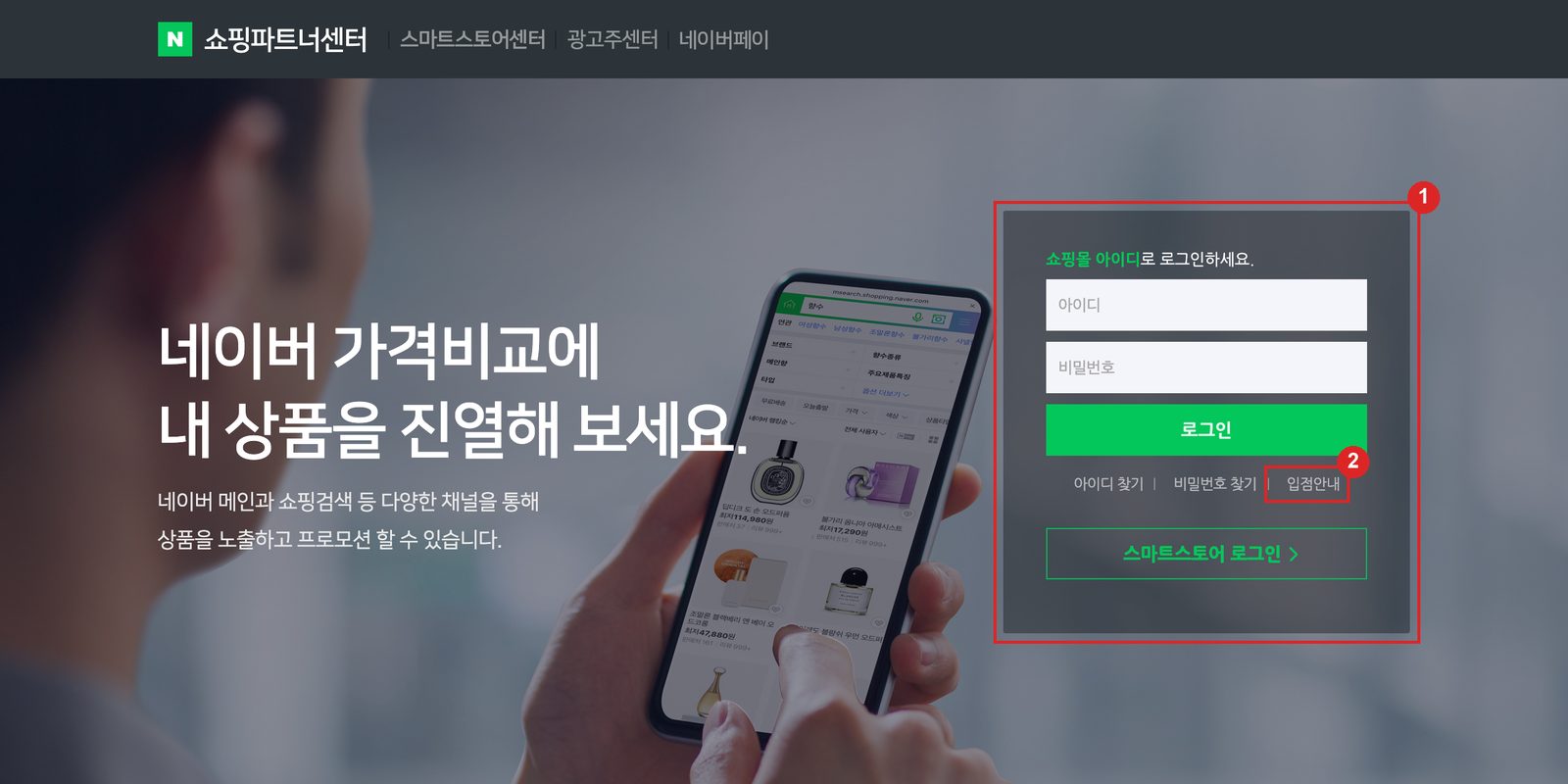
- Open
Product management→Product feed status→Store product DB URL→Manage→Request registration. - In the popup set
EP versionto the latest (3.0),Full EPtoReceiving, paste the URL from step 3 intoEP URL, writeInitial listingas the reason and clickRequest registration. - The check takes about a day.
Receivingmeans approved;Rejectedshows a reason to fix before you resubmit. - Go to
Balance/Account→Top up, choose an amount and payment method and pay. The minimum top-up is ₩100,000, by credit card or bank transfer to a virtual account within 3 days. - Turn on
Auto top-upon the same screen so products don't drop when the balance falls to zero.
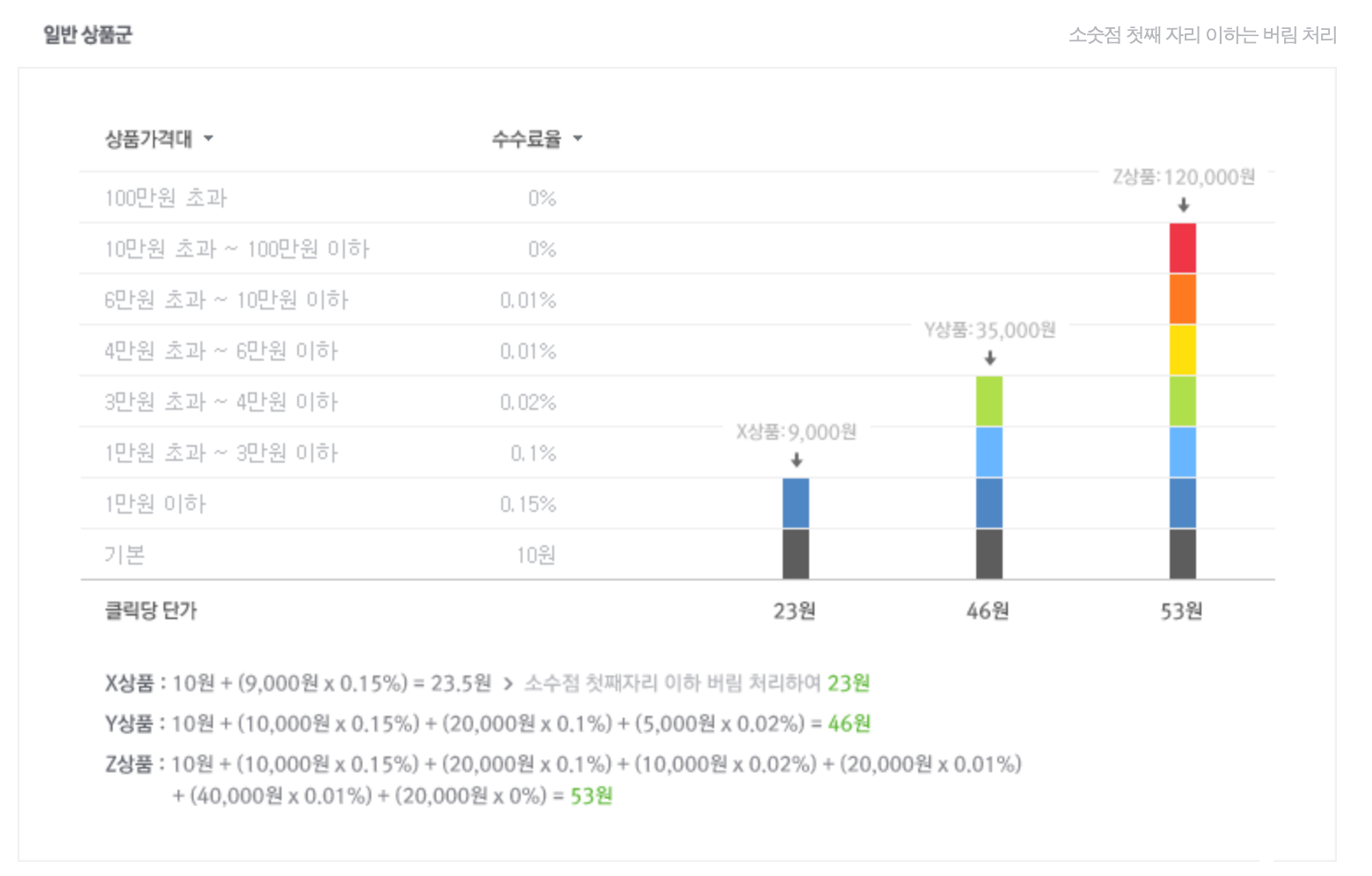
Three kinds of cost apply. Ad clicks are settled as ad spend only, with no listing fee.
| Cost | When it is charged | How much |
|---|---|---|
| Listing fee (CPC) | A click on your product in the free listing that lands on your store | Price-band and category rate + ₩10. ₩46 for a ₩35,000 general-category product |
| Shopping Search Ads | A click on a product placed in the ad area | Bid set from ₩50 to ₩100,000. The actual rate is decided by the auction |
| Sign-up fee | Once, when the review passes | ₩99,000. Currently waived |
5) Confirm products are exposed
- If products appear under
Product management→Product status→Serviced products, they are live on Naver Shopping. Allow about a day after topping up. - For products in the
Unserviced productstab, read the reason. If the category is unmatched, tick the product →Change category match→ pick the category down to the lowest level →Match. It takes a day to apply. - Search a product name on Naver Shopping and check that your store appears as a seller.
Checklist
| What to check | Screen | Expected |
|---|---|---|
| DB URL feed status | Shopping Partner Center → Product management → Product feed status | Receiving with today's timestamp |
| Prepaid balance | Shopping Partner Center → Balance/Account → Balance history | Above zero, auto top-up on |
| Serviced product count | Shopping Partner Center → Product management → Product status → Serviced products | Close to the number of products on sale in your store |
| Category matching mode | Shopping Partner Center → Account → Edit → Service info | Automatic. Manual means every new product needs matching by hand |
| Cafe24 DB URL refresh | Cafe24 → Sales channels → Naver → Naver Shopping settings | Update time shows today's date |
Five things that commonly go wrong
Review is on hold for missing buyer protection. On Cafe24, set PG escrow to on under Store settings → Payment settings → Payment method settings and choose All amounts. Confirm the escrow terms checkbox or banner shows on the checkout page, then ask for review again. Naver's escrow guide has sample screens per PG and bank.
Rejected for a domain mismatch. Resubmit with the Latin-alphabet primary domain as the store address. On Cafe24, check the primary domain under Store settings → Basic settings → Domain settings.
Rejected for a price mismatch. Split products whose price depends on a required option into separate products, show coupon and member discounts as a discounted sale price on the product page, and change ₩0 products to a real sale price of ₩1 or more.
The DB URL was rejected. Fix exactly what the reason says and resubmit. For no event text in EP(DB), enter a real promotion such as free shipping in Cafe24's Products → Add product → Sales info → Naver Shopping promo text, then request registration under Event field EP status in Product feed status.
Topped up but products still don't show. Wait a day, and if the balance is negative, top up the shortfall as well. Then check the DB URL feed status, unmatched categories in the Unserviced products tab, and thumbnail specs (500×500px or larger recommended, up to 4000×4000, square recommended, JPG, under 4MB). Cafe24 only sends product data to Naver four times a day (01:00, 10:00, 14:00, 18:00).
Once listed, running Shopping Search Ads needs separate Ads Center access. Agency access is covered in How to give an agency access to Naver Ads, and the Cafe24 side in Creating a Cafe24 sub-operator account.